











Accessing your Bikosport account lets you manage bets, review results, check your balance, and update personal details from one place. The same account can be used on a phone or computer, provided you enter the mobile number and password linked to your registration. New users must complete registration before signing in, while existing users can go straight to the login screen. Always use the official website or application, check the address before entering personal information, and avoid sharing passwords or SMS codes with other people.
Why You Need a Bikosport Account
Your personal account on Bikosport is where you can place bets, check results, deposit or withdraw funds, and manage profile details. Without logging in, you may be able to browse odds and markets, but account features remain unavailable. Transactions, account history, and other personal actions require an authenticated session connected to your verified profile.
Using the official website at bikosport-tz.com or the Android application helps reduce the risk of phishing. Third-party links and unofficial mirrors may imitate a login form and attempt to capture credentials. Save the correct address in your browser or use the official download page when installing the application.
How to Log In to Your Bikosport Account
The sign-in process is straightforward when you have the details used during registration. Bikosport uses a phone number and password, so keep access to the registered SIM card in case an additional verification step is requested.
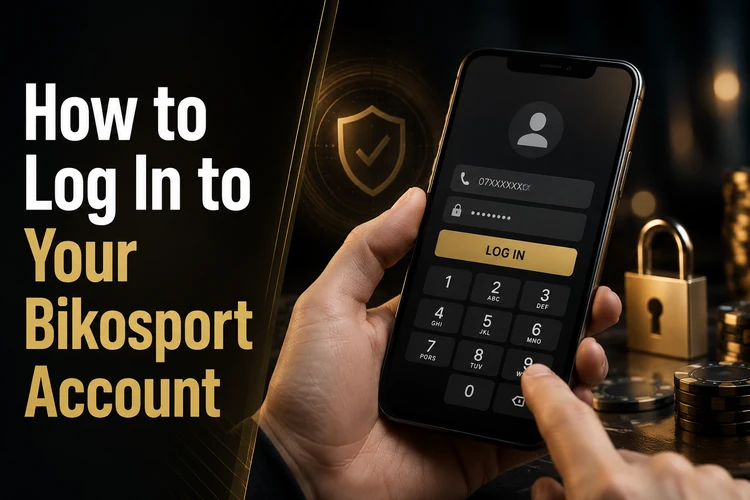
- Step 1: Open bikosport-tz.com in a browser on your phone or computer.
- Step 2: Select the login button, usually shown in the top area of the page.
- Step 3: Enter the phone number used during registration, including the correct country format.
- Step 4: Type your password carefully and check for extra spaces or incorrect capitalisation.
- Step 5: Confirm the details and wait for the dashboard to load.
After a successful sign-in, check that the displayed profile and balance belong to you before placing a bet or making a transaction. If the page loads slowly, refresh it once, clear the browser cache, or switch between mobile data and Wi-Fi. Network congestion during busy evening periods can also delay page responses.
Registering a New Account
New users must create an account before they can sign in. Registration is based on a Tanzanian mobile number, which acts as the main contact and may also serve as the username. You must be 18+ to open an account. The platform may request identity verification later, particularly before processing certain withdrawals.
The registration form normally asks for a phone number, a password, and confirmation of the number through an SMS code. Use a password of at least eight characters with a mixture of letters and numbers. Avoid a birth year, repeated digits, or a simple sequence that someone with access to your phone could guess. Enter your details consistently, because incorrect information can make later verification or account recovery more difficult.
Once the form is submitted and the SMS code is accepted, you can try your first sign-in. Review the profile settings, confirm that the contact number is correct, and take time to understand the bet slip before funding the account or selecting a market.
Signing In Through the Mobile App
The Android application provides an alternative to opening the website in a browser. It can keep an active session on the device, which is convenient for regular users, although you should still protect the phone with a screen lock and sign out if another person may use it.
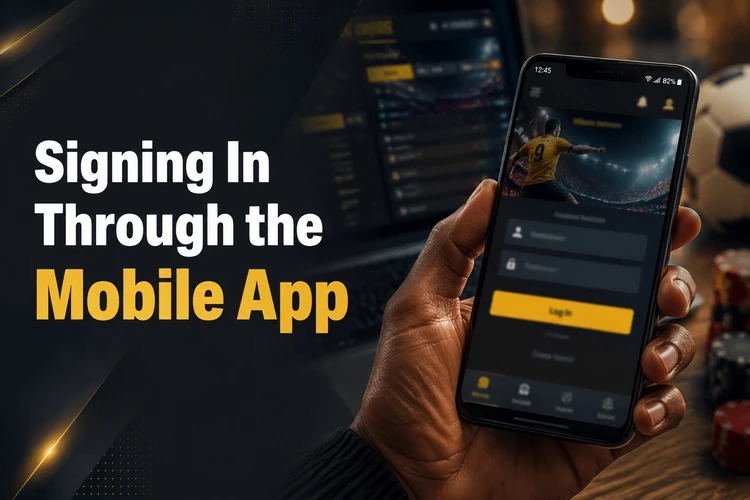
Download the installation file only from the official source and check the requested permissions before completing installation. Android may ask you to allow installation from an external source when the application is distributed outside Google Play; this setting should be used cautiously and disabled again when it is no longer needed. Open the app after installation, enter the same phone number and password used on the website, and confirm the login.
Keep the application updated when a newer official version is available. Updates can address security problems and connection issues, while older Android devices may need sufficient storage and a stable connection for installation. If the app behaves differently after an update, close it fully, restart the device, and try again before reinstalling.
Recovering a Lost Password
If you cannot remember your password, use the recovery option on the login screen. Select the link labelled «Forgot password?» and enter the phone number connected to the account. A reset code should arrive by SMS. Wait a couple of minutes before requesting another code, since repeated requests can delay delivery or temporarily restrict further attempts.
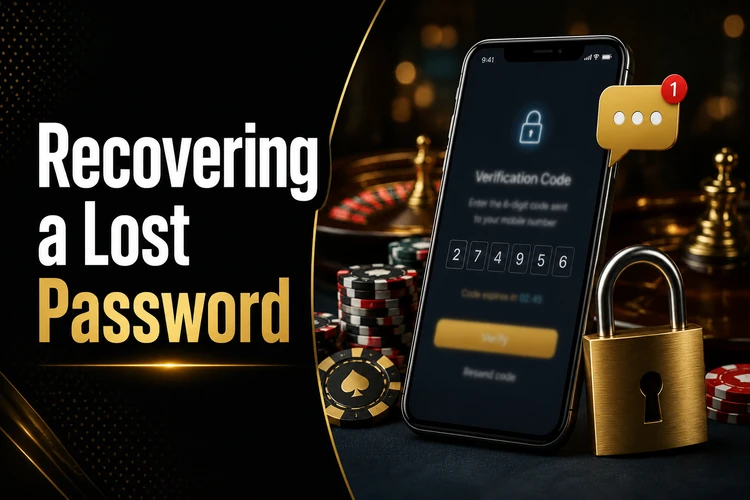
Enter the code, create a new password, and confirm it. You should then return to the login screen and use the updated details. If the SMS does not arrive, check signal strength, make sure the inbox is not full, and confirm that the SIM card is active. Trying the SIM in another phone can help show whether the problem is related to the handset.
Other access problems include an incorrectly formatted phone number, a mistyped password, an expired session, or a connection that drops during authentication. Read the exact error message rather than repeatedly submitting the form. Close duplicate sessions, restart the browser or app, and try a reliable connection. If these steps fail, use the contact page so support can check the account after confirming your identity. Never send your password or a verification code in a support request.
Tips for Keeping Your Account Secure
Use a strong password that is not reused on email, social media, or other betting accounts. A password manager can generate and store a different password for each service. Do not save credentials on a public computer, and avoid signing in while connected to an unsecured network that you do not trust.
Log out after using a shared phone, a cyber-café computer, or a friend’s device. On a personal phone, an active session is more convenient, but a PIN, fingerprint lock, or other screen protection should be enabled. Review the device before lending it to someone else, particularly if the browser can open saved account pages.
Check that the address is bikosport-tz.com before entering credentials. Phishing pages may use extra characters, unusual pop-ups, or a certificate warning to appear legitimate. Close the page if anything looks suspicious and navigate to the official site manually. Keep the application updated and install files only from the official source.
Finally, do not share passwords or SMS codes with anyone claiming to represent Bikosport. Genuine support should not need your password. Treat unexpected calls, messages, or requests for remote access as suspicious and report them through the platform. If you believe someone has accessed the account, change the password and contact support promptly.
FAQ
Use the Tanzanian phone number registered to the account and the password created during sign-up. Enter both on the login screen and confirm. If the service requests an additional check, follow the instructions sent to the registered number.
Open bikosport-tz.com, select the registration option, enter your mobile number, and create a password. Confirm the SMS code sent to your phone. You must be 18+ to register, and further verification may be required later.
Select the forgot-password option on the login screen, enter the registered phone number, and wait for the reset code. Use that code to create a new password, then return to the login screen and sign in again.
Yes. Install the Android application from the official source, open it, and enter the same phone number and password used on the website. Keep the device protected with a screen lock and sign out if someone else will use it.
Check the phone number format, password, and network connection first. Refresh the page or restart the app, then try again without submitting repeated requests. If the error continues, contact support and describe the message shown on screen.
It is safer on a personal phone protected by a PIN or biometric lock. Always log out on shared or public devices, and never give your password or SMS verification codes to another person.